Every feature, honestly.

Everything PDFMate 1.5.0 does, and where to find it. If it is not on this page, the app does not do it.

Legend:macOS 26Apple IntelligenceTwo displays
Narrows the list as you type. Nothing is stored.
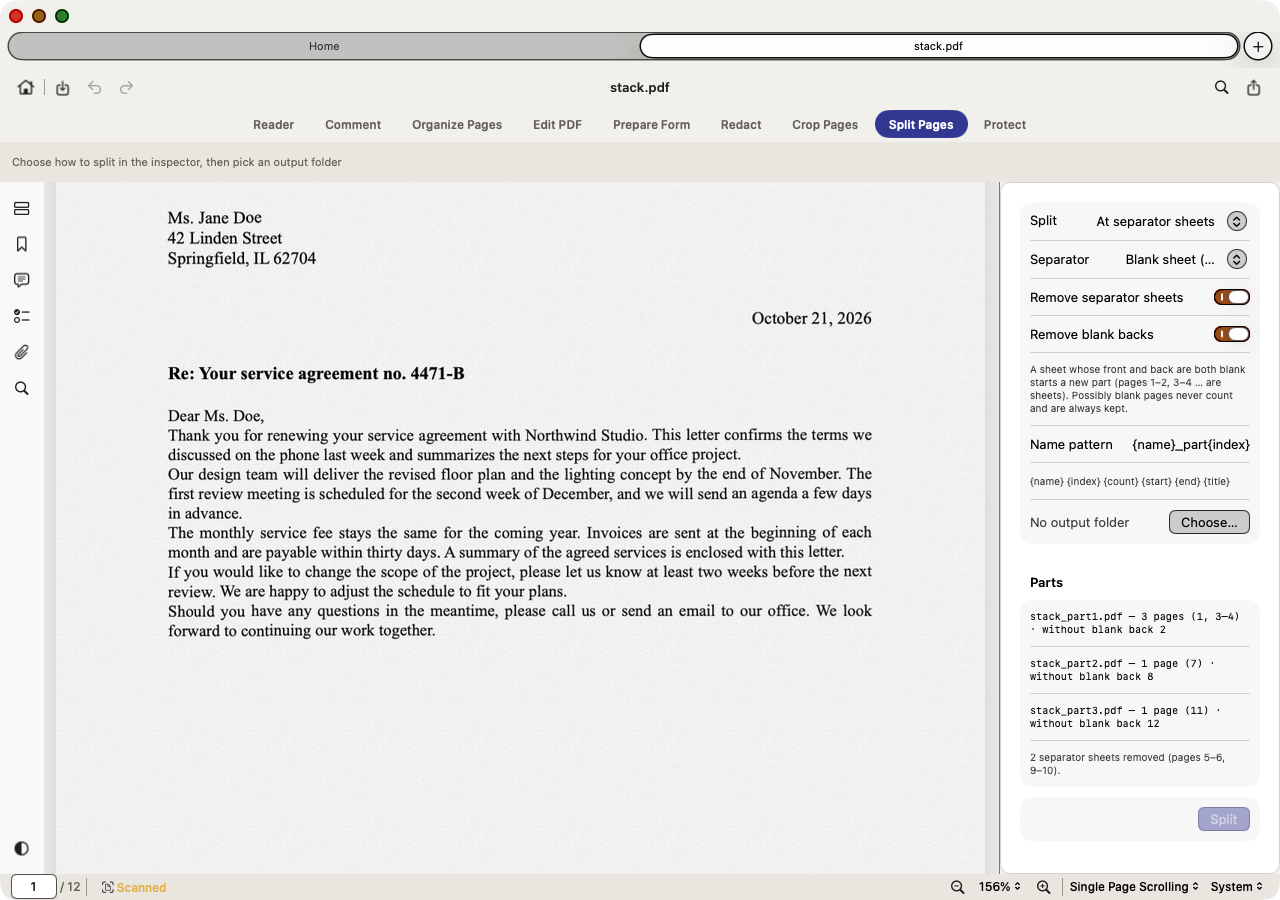
Split Pages preview listing three parts with separator sheets removed

Scan the whole stack in one go.

Put an empty sheet between documents. Split Pages ▸ At separator sheets makes one PDF per document and removes the separators and blank backs.

Split Pages ▸ At separator sheets
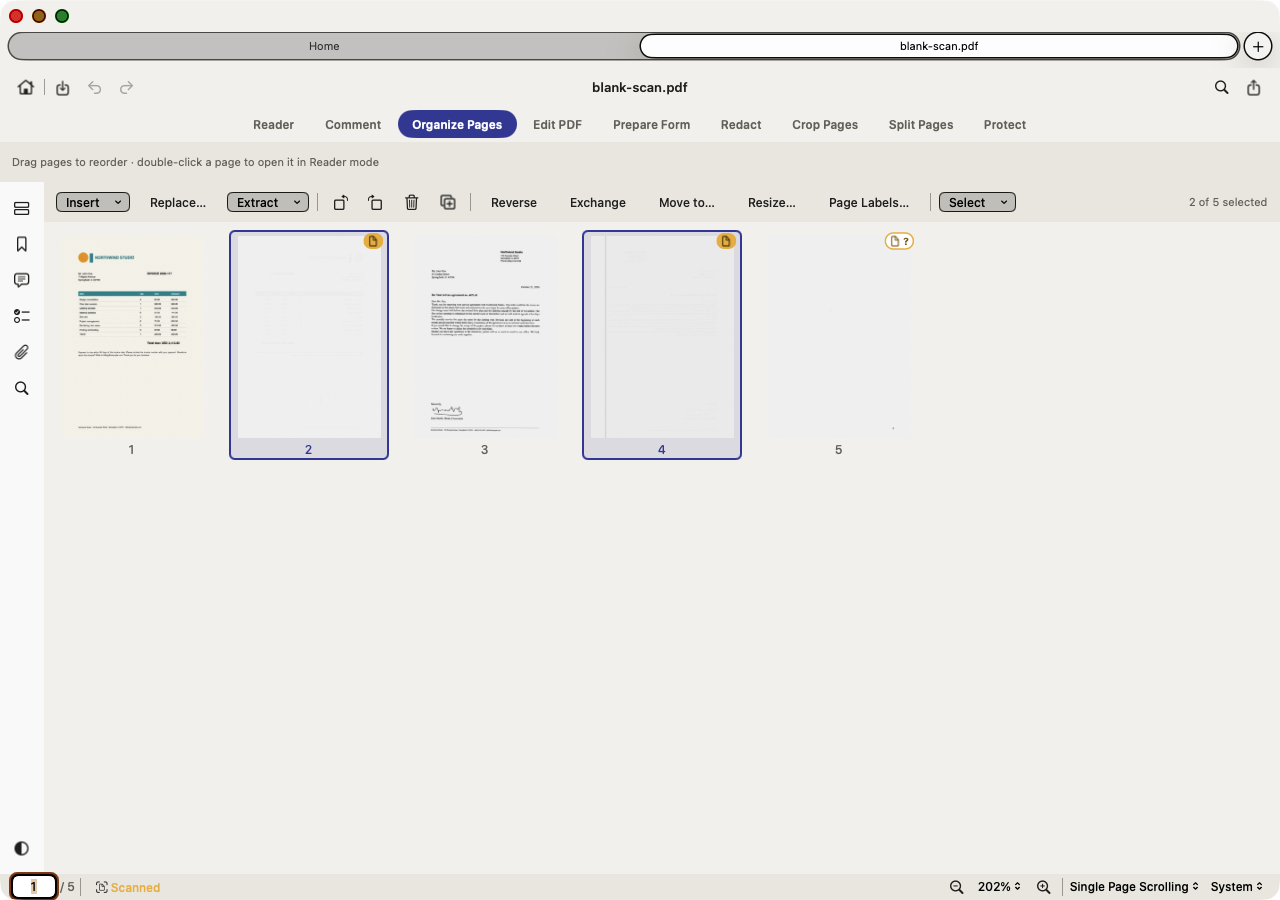
Organize Pages with two amber blank-page badges and one possibly-blank badge

Clean up.

Blank, sideways and duplicate pages are found and badged on the thumbnails. Nothing is removed until you confirm, and every change can be undone.

Organize Pages ▸ Select ▸ Blank Pages
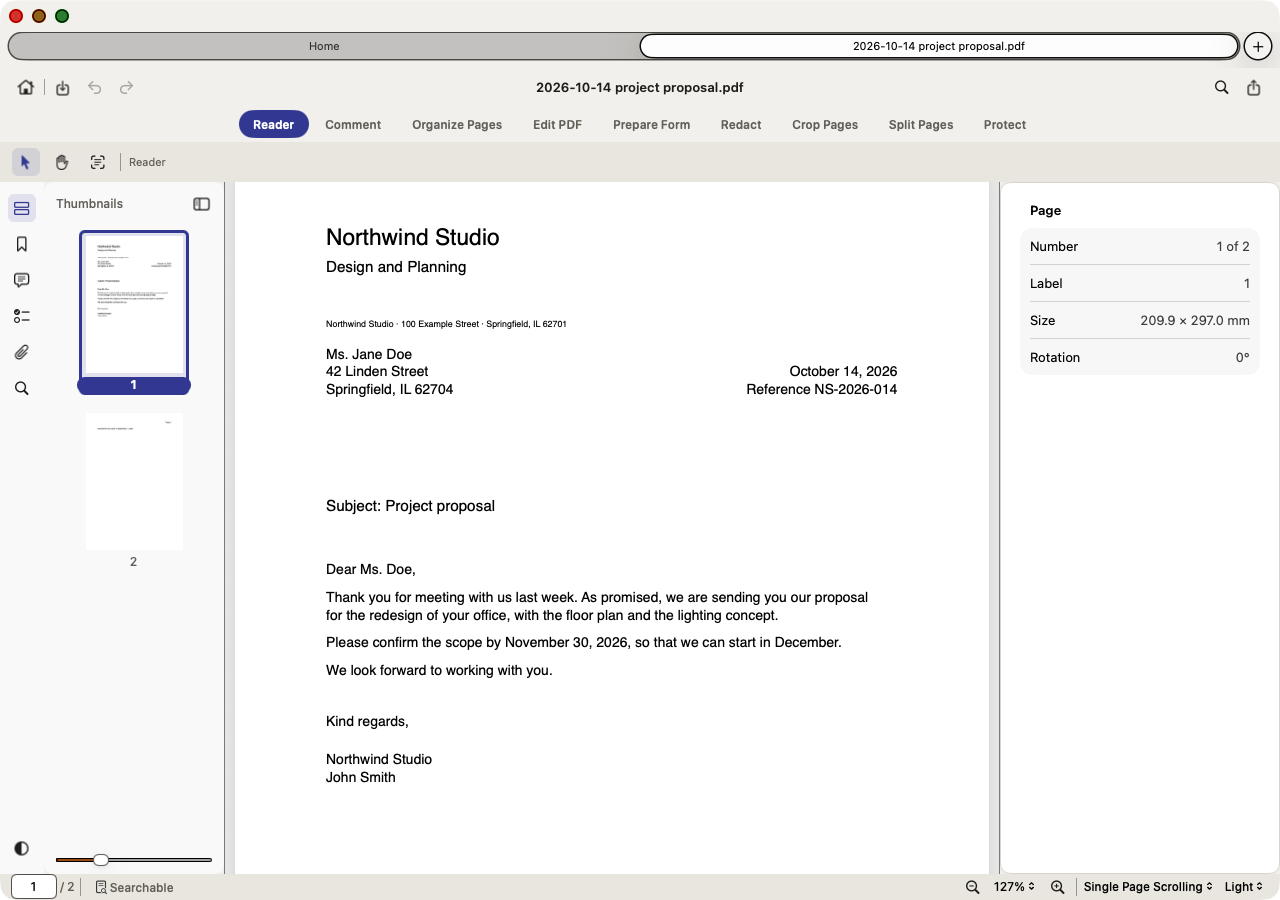
Reader mode showing a project proposal renamed by the date printed in it
Apple Intelligence

Name it by its own date.

Rename with Suggested Name… proposes “2026-10-14 project proposal.pdf”, using the date printed in the document, not the scan date.

File ▸ Rename with Suggested Name…
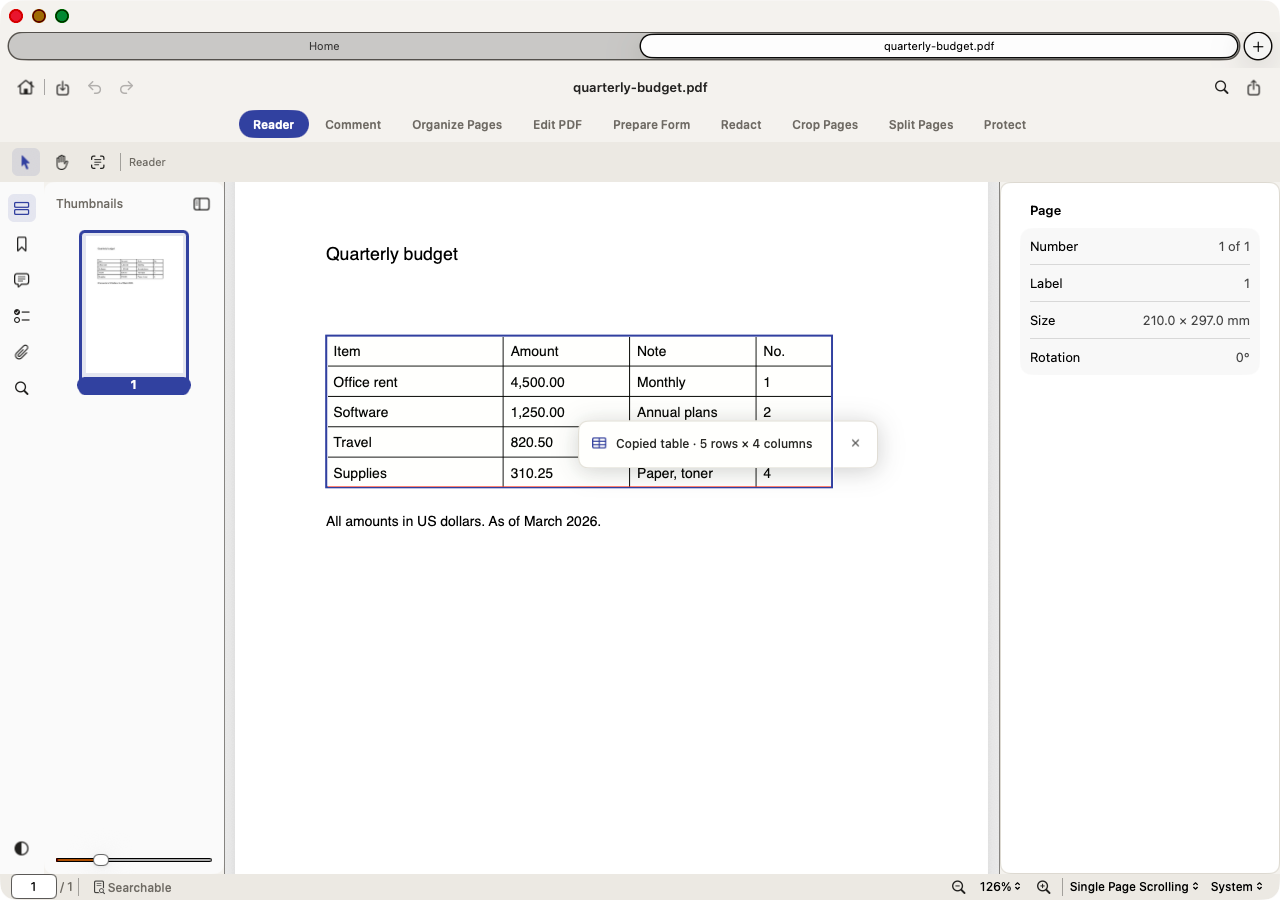
Copied table · 5 rows × 4 columns
Control Command CmacOS 26

Capture Text and tables.

Drag over any area, scanned or digital, and the text is on the clipboard. Copy Table pastes into Numbers or Excel; Export Table writes a CSV in your Mac's regional format, so Excel opens it correctly.

Tools ▸ Capture Text from Area

Start and open

Open almost anything

Word, RTF, text, Markdown, HTML and images become PDFs as they open.File ▸ Open…Command OGood to know: Drop several photos and PDFMate offers to combine them into one PDF.
  • Recent and Starred lists on Home
  • Open Quickly searches recent files by name

One window, nine modes

Reader, Comment, Organize Pages, Edit PDF, Prepare Form, Redact, Crop Pages, Split Pages and Protect behind a sliding pill.Tools ▸ …Control 1Good to know: Native tabs: one window per document, or all in one.
  • ⌃1–⌃7 switch modes
  • Mode bar labels in SF Pro Rounded

Home: Recent, Starred and Tools

A start screen with your recent and starred files, a drop zone and twelve one-click tool tiles.Home · File ▸ New TabCommand TShift Command TGood to know: Starred files are entries of the Recent list, not a separate library.
  • Search matches file names and folders, ignoring case
  • Grid or list layout, sorted by date or name
  • Tiles: Convert, Create, Batch, Organize, Compare, Protect, Reduce Size, OCR, Watermark, Header & Footer, Bates, Flatten

Open Quickly

A floating search panel that finds files from your Recent list as you type.File ▸ Open Quickly…Shift Command OGood to know: It searches the Recent list, not the whole disk.
  • Starred files come first
  • ↑ and ↓ choose, Return opens, Esc closes

Read

Reading themes and paper styles

Twelve themes incl. textured Parchment, Kraft, Xuan, Linen and Fine-grained paper.View ▸ ThemeGood to know: Themes tint only the screen, never the file or the printout.
  • System follows the appearance
  • Night inverts the page, hues preserved

Zoom and page display

10 % to 6400 %, ⌘ + scroll around the pointer; single page, continuous, two-up.View ▸ ZoomCommand plus
  • Fit width / fit page
  • Zoom field in the status bar

Read Aloud and Auto Scroll

Have a page read to you, or let it scroll by itself.View ▸ Background & Display ▸ Read Aloud
  • Read Aloud turns the pages as it goes
  • Auto Scroll stops at the end of the document

Selected-text menu

Right-click selected text to highlight, underline, strike through or squiggle it, add a highlighting note, look it up or hear it.Right-click selected text
  • A selection across pages becomes one undo step
  • Look Up uses the macOS dictionary

Text-layer indicator

The status bar says Searchable, OCR text, Partly searchable or Scanned; click Scanned to run OCR.Status barGood to know: On very large files the status is based on the first 60 pages.
  • Page field accepts page numbers and printed page labels
  • Zoom, page layout and reading theme menus

Slide show and presenter view

Present any PDF full screen with a laser pointer, pen and timer; the presenter view shows the next slide and your notes.View ▸ Slide ShowOption Command ReturnCommand ReturnGood to know: Pen ink is temporary, and there are no slide transitions.
  • L laser, P pen, C clear ink, T timer, Esc ends the show
  • Notes are the comments on the current page

Thumbnails

Page thumbnails that follow your reading position; drag to reorder and right-click for page commands.View ▸ ThumbnailsShift Command 1
  • Page-check results show as amber badges
  • A slider resizes the thumbnails
  • Page labels under each page

Bookmarks and Generate from Headings

Edit the outline, or build a nested one from the document's headings in one step.Bookmarks ▸ Generate from Headings…Shift Command 2Good to know: It needs real text: scanned files need OCR first.
  • Skips running headers, footers and page numbers
  • Append to or replace existing bookmarks, as one undo step

Go to Page and page history

Jump by page number or printed page label; Back and Forward step through the pages you visited.Go ▸ Go to Page…Option Command GCommand left bracketCommand right bracket
  • Up to 200 visited pages
  • First, Last, Previous and Next Page

Find, Replace and Redact

Find with Match Case and Whole Words, replace across the document, or mark every match for redaction.View ▸ FindCommand FShift Command FCommand RGood to know: It finds text only: scanned pages need OCR first.
  • Every hit is highlighted in amber
  • Results list with page and context

Attachments

List, add, open, save, rename or remove the files embedded in a PDF.View ▸ AttachmentsShift Command 5
  • Document-wide and page attachments
  • Every change can be undone

Organise pages and clean up scans

Blank, sideways and duplicate pages

Three checks mark pages with amber badges and change nothing until you confirm.Organize Pages ▸ Select ▸ …Good to know: A page with any text, even a lone page number, is never called blank.
  • Possibly-blank pages are never deleted unless you select them
  • Each change is one undo step

Split at separator sheets

Scan a whole stack with an empty sheet between documents; get one PDF per document.Split Pages ▸ At separator sheetsGood to know: No preview in Batch.
  • Removes separators and blank backs
  • Name pattern {name}_part{index}

Crop Pages

Trim margins on one page or all, with a live preview.Crop Pages
  • Reset Crop restores the full page

Organize Pages

Drag pages to reorder; insert, replace, extract, rotate, duplicate, reverse, exchange, move and resize them.Organize PagesControl 5
  • Interleave merges separately scanned fronts and backs
  • Page labels like i, ii or A-1
  • Every page operation is one undo step

Split Pages

Every N pages, by file size, by top-level bookmarks, by page ranges or every page; the original stays as it is.Split PagesControl 7
  • Preview Parts lists every file first
  • Existing files are never overwritten

Convert, compress and batch

Batch

One operation over many PDFs: Convert, Combine, Insert, Split or Remove Blanks. Originals are never overwritten.Tools ▸ BatchGood to know: Split at separator sheets has no preview in Batch.
  • Output folder of your choice
  • Per-file status with Done / error
  • OCR can be added while removing blanks

Convert and export

Export to Word, RTF, text, HTML, Markdown, CSV, XML and images; create PDFs from blank pages, files, images or the clipboard.File ▸ Export To
  • Combine files nests each file's bookmarks under its name

Reduce File Size and Flatten

Compress images, flatten comments and forms, or convert to an image-only PDF.Tools ▸ Reduce File SizeGood to know: Image PDFs lose selectable text, by design.
  • Low / Medium / High compression

Create and combine

Create PDFs from blank, lined, grid or dotted pages, from files, images or the clipboard; combine several PDFs.File ▸ Create
  • Nine paper sizes, portrait or landscape
  • Combining nests each file's bookmarks under its name

Watermark, background, header & footer, Bates

One sheet with a live preview and templates, applied as vector content to the pages you choose.Tools ▸ WatermarkControl 8Control 9Control 0Good to know: A decoration becomes part of the page: only Undo takes it back.
  • Page X of Y, dates, file name and title macros
  • Bates numbers such as ABC000001

Compare PDFs

Two versions side by side, with word-level text changes and visual differences highlighted.Tools ▸ Compare PDFsGood to know: PDFs only, and there is no report export.
  • Inserted and deleted pages are recognised
  • Filters for insertions, deletions and replacements

OCR text recognition

Adds an invisible, searchable text layer to scanned pages, in every language Apple Vision offers on your Mac.Tools ▸ OCR Text RecognitionGood to know: The text layer stores Latin characters only.
  • Skip blank pages (on by default)
  • Turn pages upright while reading
  • One undo step

Capture Text

Drag over any area, scanned or digital, and the recognised text is on the clipboard.Tools ▸ Capture Text from AreaControl Command CGood to know: Recognition is tuned for Latin-script languages such as English.
  • A clipboard you changed meanwhile is never overwritten
  • It never changes the document and adds no undo step

Copy Table

Copies a table from the page as cells that paste straight into Numbers or Excel.Right-click a page ▸ Copy TablemacOS 26
  • Cells that came back empty are read again one by one
  • An editable preview lets you fix recognition slips first

Export Table as CSV

Writes a CSV in your Mac's regional format, with a byte-order mark, so Excel and Numbers open it correctly.Right-click a page ▸ Export Table as CSV…macOS 26
  • Comma-separated, or semicolon-separated where the decimal mark is a comma
  • Amounts keep the decimal mark they were printed with
  • Cells a spreadsheet would run as formulas are made safe

Smart names and suggestions

Rename with Suggested Name

Proposes “YYYY-MM-DD topic words” from the document's own date and subject; never overwrites another file.File ▸ Rename with Suggested Name…Good to know: Model-based topic words need macOS 26 with Apple Intelligence; without it the subject line is used.
  • Also offered on Save As for untitled or scanner-named files
  • The model may only choose among dates found in the text

Suggested title, subject and keywords

Fills document properties from the first two pages, on your Mac.File ▸ Properties… ▸ Suggest
  • Always shown for you to confirm

Intelligence settings

One switch: Use Apple Intelligence for suggestions. Status line shows whether the model is ready.Settings ▸ Intelligence
  • Nothing leaves the Mac either way

Save As name pre-fill

Raw scanner and camera names such as SKM_… or IMG_… are replaced by the suggestion when you save.File ▸ Save As…Shift Command S
  • A name you type yourself always wins

Redact and protect

Mark Sensitive Data

Pre-marks bank account numbers (IBAN, checksum-verified), card numbers, tax IDs, phones, emails, addresses and links.Redact ▸ Sensitive Data…Good to know: Applying turns each marked page into an image. Name detection is experimental.
  • Tax IDs from the US, UK, Canada, Australia and India, and VAT numbers from the UK and 14 EU countries
  • Plain numbers only next to a label such as “SSN”
  • Dates and Names optional
  • Text stays until you Apply

Passwords and permissions

Open and owner passwords with eight permission switches.Protect ▸ Encrypt with Password…Good to know: Files are written with 128-bit AES; AES-256 files open.
  • Remove Hidden Data

Digital signatures

Self-signed IDs (RSA 2048 / ECDSA P-256) or an imported .p12; visible or invisible signatures; verification banner.Protect ▸ Sign…
  • Warning before a save would break a signature

Mark and apply redactions

Mark areas or search results, review the pending marks, then apply: the marked content is removed for good.Redact mode · View ▸ Find ▸ Find Text & RedactControl 4Command RGood to know: Earlier versions of the file in backups or sync services are not touched; check them before sharing.
  • Apply runs in the background with Cancel
  • Annotations that overlap a mark are removed

Remove Hidden Data

Strips metadata, attachments and JavaScript, and on request comments, form fields, links and bookmarks.Protect ▸ Remove Hidden Data…
  • A summary lists what was removed
  • Undoable

Comment and mark up

Over 25 comment tools

Notes, typewriter text, text boxes and callouts, four text markups, pencil, highlighter and eraser, seven shapes, stamps, signatures, attachments and links.Comment modeControl 1
  • Single keys switch tools: N T H U S P E R O L A K
  • Saved as standard PDF annotations that other readers show

Stamps, stickers and signatures

21 standard stamps, your own text or image stamps, imported stickers and up to 20 saved signatures.Comment ▸ Stamp ▾ · Signature ▾Good to know: A placed signature is a picture, not a cryptographic signature (see Digital signatures).
  • Revised, Reviewed and Received add the date
  • Draw, type or import a signature

A highlighter that blends

A translucent marker that multiplies like a real highlighter, on text, scans and pictures alike.Comment ▸ Highlighter
  • Shift or the Straight lines option draws straight strokes
  • The blending is saved into the file

Measure to scale

Distance, perimeter and area in ten units, with calibration against a known length and snapping.Comment ▸ Measure ▾Good to know: The value is shown while you measure and stored as text; no permanent caption is drawn on the page.
  • Scale ratio and 0–6 decimal places
  • Snap to endpoints, midpoints, intersections and paths

Tools remember their style

Colour, opacity, thickness, line style and font stay as you last set them, also after a restart.Style bar · Inspector
  • Reset Tool Defaults returns one tool to its factory style
  • The style bar and the inspector mirror each other

Rotate, duplicate and arrange

Turn annotations in 90° steps, duplicate them across a page range, copy them between documents and re-stack them.Right-click an annotation
  • Comments placed on rotated pages read upright
  • Duplicate Across Pages takes ranges like 1-3, 5, 8-

Comments pane, replies and export

Every comment grouped by page, with threaded replies, search, filters, four sort orders and export to text or CSV.View ▸ CommentsShift Command 3
  • Replies are standard PDF replies
  • CSV cells are made spreadsheet-safe

Edit

Text blocks

Click or drag to add a borderless text block, styled with six font families, bold, italic and alignment.Edit PDF ▸ TextControl 2Good to know: Text already in the PDF cannot be clicked into and retyped; use Find & Replace.
  • Return commits, Shift-Return adds a line
  • Double-click to change the text again

Images

Insert pictures, then move, resize, rotate, replace or extract them.Edit PDF ▸ ImageGood to know: Only images inserted with PDFMate can be moved or replaced.
  • Resizing keeps the proportions
  • Insert Page from Image… adds pictures as new pages

Find & Replace page text

Replace a word or phrase in the document's real page text, on all pages, as one undo step.View ▸ Find ▸ Find Text & ReplaceShift Command FGood to know: A replacement can only use letters the embedded font already contains; not available for password-encrypted files.
  • Match Case and Whole Words
  • Skipped matches are listed with the reason

Links

Drag over an area to link it to a page, a web address or a file.Edit PDF ▸ Link · Comment ▸ LinkK
  • Double-click a link to edit it
  • Every change can be undone

Forms

Nine field types

Text, check box, radio button, list box, dropdown, button, signature, image and date fields, with automatic unique names.Prepare FormControl 3
  • Drag to draw a field or click for the default size
  • Radio buttons share a group and its export values

Field properties and calculations

Appearance, options per field type, and Sum, Product, Average, Minimum, Maximum or a formula.Prepare Form ▸ InspectorGood to know: Calculations are stored in PDFMate's own format and do not update while you type in Fill mode.
  • Renaming a field updates every calculation that uses it
  • Circular references are refused

Fill, Reset and Tab Order

Fill the form in place, reset it to its defaults, and show the keyboard order as numbered badges.Prepare Form ▸ Fill · Tab OrderGood to know: Tab order is shown, not editable.
  • Reset Form is one undo step
  • Highlight Existing Fields tints every field

Form data import and export

Exchange field values as FDF, XFDF, CSV or JSON.File ▸ Export To ▸ Export Form Data…
  • Import fills matching fields in one undo step
  • Names the file has but the form lacks are listed

Settings, shortcuts and saving

Undo for every edit

Every change to a document can be undone and redone; multi-step actions are one step.Edit ▸ UndoCommand ZShift Command Z
  • Each document keeps its own history
  • The menu names the action, e.g. Undo Rotate Page

Autosave and unsaved markers

Documents autosave in place; unsaved changes show a dot, and Quit asks before anything is lost.File ▸ SaveCommand SShift Command SGood to know: Work on a copy if you need the untouched original; there is no Revert command.
  • Signed files are never autosaved
  • Your session reopens next time

Properties

Title, author, subject and keywords, plus security, fonts and structure, in one sheet.File ▸ Properties…Command D
  • Saving the description is one undo step
  • Remove JavaScript or sanitise from the Structure tab

Settings

Seven tabs: General, File, Appearance, Documents, Comments, Measuring and Intelligence; changes apply at once.PDFMate ▸ Settings…Command comma
  • Recent list size 5–200
  • Default zoom, page display and navigator

Print and share

Print through the macOS dialog in the real colours, or share through Mail, Messages or AirDrop.File ▸ Print… · Share buttonCommand P
  • Reading themes are never printed
  • Unsaved changes are shared as a temporary copy

Privacy

Everything on your Mac

Documents are never uploaded. OCR, page checks, sensitive-data finding and suggestions run on your Mac.The whole app
  • No account, no cloud, no analytics, no advertising
  • Built only on Apple frameworks, with no third-party code

Update check

PDFMate checks pdfmate.org for a newer version about once a day and tells you; it never downloads or installs anything.Settings ▸ General ▸ Check for updates automatically · Help ▸ Check for Updates…
  • On by default; turn it off any time
  • Help ▸ Check for Updates… checks right away
  • Sends no document data

Stored locally

Settings, the Recent list, stamps, signatures, templates and Digital IDs stay in your Mac's preferences and Application Support folder.~/Library/Application Support/PDFMate
  • Digital IDs are encrypted with your password

Try all of it. Free.

Download coming soon